Setting Up

Give your Agent Group a name before setting up its parameters

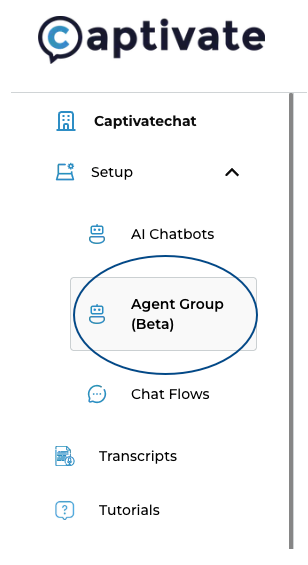
The "Agent Group (Beta)" button is accessible in the left-hand side of the Captivate platform. Click this to access the Agent Group page.

Before you create an Agent Group, you have to access its main menu.

From the left-hand side of the Captivate platform, click Agent Group (Beta).

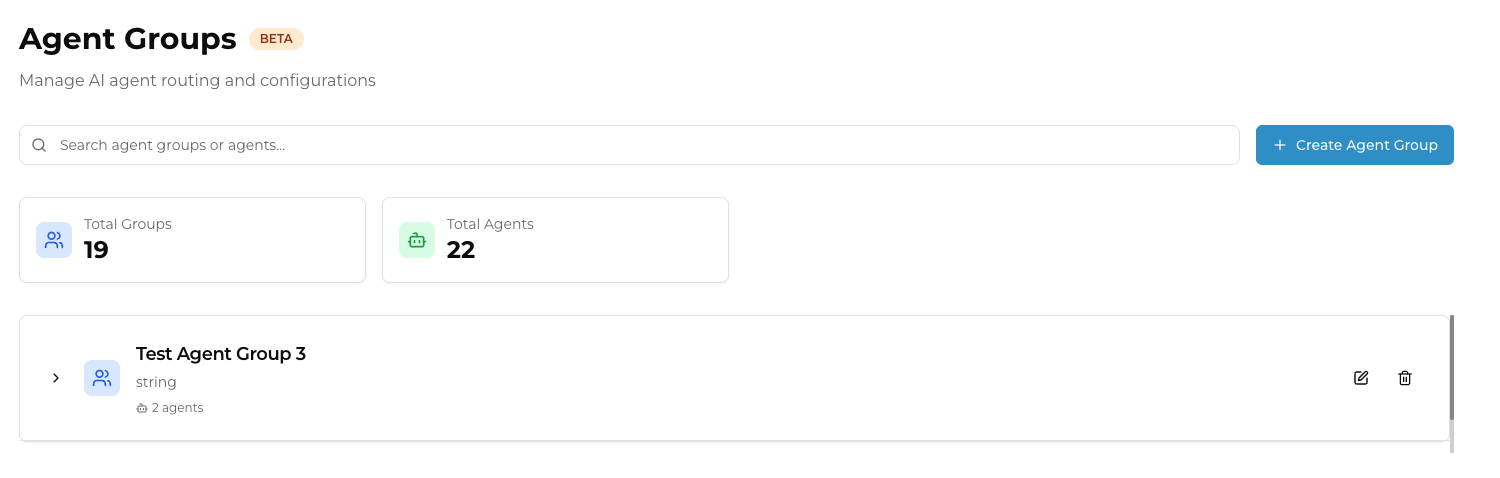
The "Agent Groups" page gives a view of the Total Groups in the platform and the Total Agents used across them. You may click "+Create Agent Group" to start creating your own Agent Groups.

Within the Agent Groups page, you will see:

  • The Total Groups or the total number of Agent Groups created in the platform

  • The Total Agents used across these Agent Groups

To start creating your Agent Group, click You may click "+Create Agent Group" to start creating your own Agent Groups.

You can use the same Agents (AI Chatbots) in different Agent Groups

Depending on the kind of AI Chatbots you have set up, you can attach them to different Agent Groups.

For example, a unified Company Information bot can be attached to Agent Groups about Sales, Marketing, or Operations. Such configurations could look like:

  • Sales Group: Company Information, Sales Information

  • Marketing Group: Company Information, Product Guide, Marketing Collaterals

  • Operations: Company Information, Service Guide

Last updated

Was this helpful?