
View and Modify Agent Groups

Edit Agent Groups you already created inside the Agent Group window

The "Agent Groups" page gives a view of the Total Groups in the platform and the Total Agents used across them. You may click "+Create Agent Group" to start creating your own Agent Groups.

The Agent Groups window contains a list of all Agent Groups you created. You can modify Agent Groups from within this interface.

View inside the Agent Group window

Click the drop-down icon beside the name of an Agent Group to expand it within the "Agent Groups" window. It will reveal the overview of the Agents inside the group - each of their Descriptions, Providers, Example Queries. You can also edit the Agent Group or delete it.

Flag an Agent Group for editing by clicking the drop-down icon beside its name. This will mark the Agent Group as Selected.

It reveals a quick overview of the Agents inside the Agent Group.

You also have two options:

  • Edit: Click the pencil icon to go to an editing interface similar to +Create New Agent Group.

  • Trash: Click the garbage icon to delete the Agent Group.

View Agent Group as its own window

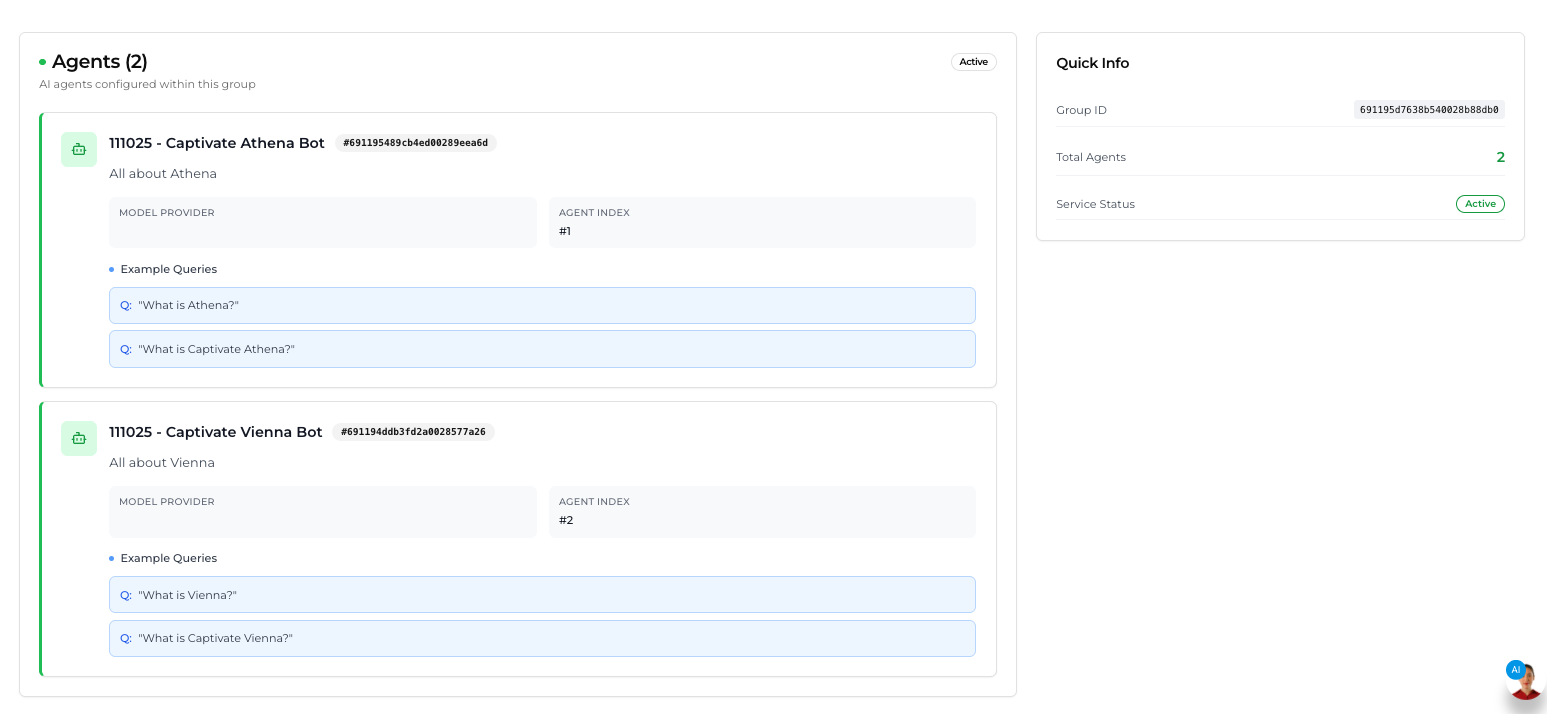
When you click an Agent Group in the "Agent Groups" window, it brings you to its own page. It will give an overview of all Agents inside them, alongside their Description, Model Provider, Example Queries, and their Agent Index.

Click an Agent Group to view it as its own window.

It will reveal the following:

  • Quick Info: A quick overview of the entire Agent Group, as well as its

    • Group ID

    • Total Agents

    • Service Status: If the bot is Active or Inactive

  • Agents: The overview of every Agent inside the Agent Group, as well as their

    • Description

    • Model Provider

    • Example Queries

    • Agent Index: This is the order from which the Agent was added into the Agent Group

Edit the Agent Group

Click the Edit icon to open the "Edit Agent Group" window to start modifying information, and adding agents to your Agent Group. Click "+Add Agent" as many times as you need to add as many AI Chatbots in your Agent Group as needed, provided you fill out the necessary information.

After clicking the pencil icon, you will be brought to the Edit Agent Group window.

It appears exactly like the Create New Agent Group window, but you can now modify existing fields you filled out in your Agent Group.

When done with your changes, click Finish updating your Agent Group in the "Edit Agent Group" window by clicking the "Update Group" button.

Last updated

Was this helpful?